About Me

My photo
a Dynamic and Energetic guy.....

Wednesday, December 21, 2011

SharePoint 2010 Resource Throttling

When we are heavily using SharePoint we need to increase default resources.
If any LIST is going to exceed 20,000 item limit we have to increase the default count.
1. go to "Central administration "
2. Go to web applications list
3. Select the needed web application
4. go to "General settings" on the menu bar
5. select "Resource settings"
  
 6. Set the maximum items count (List View Threshold) or maximum number of lookup fields


Tuesday, December 20, 2011

SharePoint 2010 Search return no results

1. Do a "Crawl"
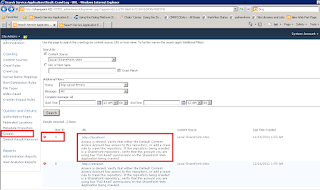
2. Go to "Crawl Log"
 

3. Have a look on the "SharePoint Log"
4. It is because of "Alternative Access Mapping", SharePoint Application server can't get data from itself when ACM is enabled.

Solution
So you need to disable the LoopBackRequest in registry. To do this, just follow my instructions:

1. Go to command window and type regedit.exe
2. Once opened the registry editor, just navigate to "HKEY_LOCAL_MACHINE\SYSTEM\CurrentControlSet\Control\Lsa"
3. Right click on "Lsa" and create a new 32bit DWORD value
4. Rename it as "DisableLoopbackCheck" (Note: you cannot rename it actually. so, once created the DWORD value, directly paste/type as "DisableLoopbackCheck".
5. Then again modify the value of "DisableLoopbackCheck" as "1"
6. Close the registry editor.
7. Now start to crawl the content.


5. Do a Re-Crawl

SharePoint 2010 Search Advanced

1. Create a separate "Search Service Application"
2. Add SharePoint account in to "Administrator"group
3. Click on the service application
4. Go to "Content Sources"
5. Type the URLs (eg:- http://Intranet)
6. Go to "Scopes" and then Click "Edit"
7. Set the web address or content source
8. Set "Scopes"

9.Set "Scope rules"

10.Set the "Crawl Rules"
11. Crawling Full
12. Crawling Incremental
13. Go to "Crawl Log" and see the "Statistics"
14. "Crawl" success with green color icon
 

15. Filter "Crawl Items" if you have 1000+ items


Tuesday, December 6, 2011

SharePoint 2010 User Profile Sync

                  1. We have to create user profile connection in central administration
                                             2.Populate data from AD
 3.Restart User Profile Synchronization service 

4. Edit User Property (Picture property) 

5. Map with AD property (ThumbnailPhoto)

6. Start the User Profile SYNC
7.Run the powershell command
"Update-SPProfilePhotoStore -CreateThumbnailsForImportedPhotos 1 -MySiteHostLocation http://SharePoint-T02/my"


8.Verify Images in "http://Intranet/my/User Photos/"

DONE :)
Now AD user images should display in Mysite of all users.

NB:- SharePoint 2010 should be updated with SP1 to get the images from to SharePoint


Sunday, November 27, 2011

SharePoint 2010 User Profile Sync filtration

We can have a filtration to user profile sync in SharePoint 2010.
If we don't need to sync deactivated user accounts we can have a "Exclusion Filter".
We can use any attribute to reduce the load of sync.

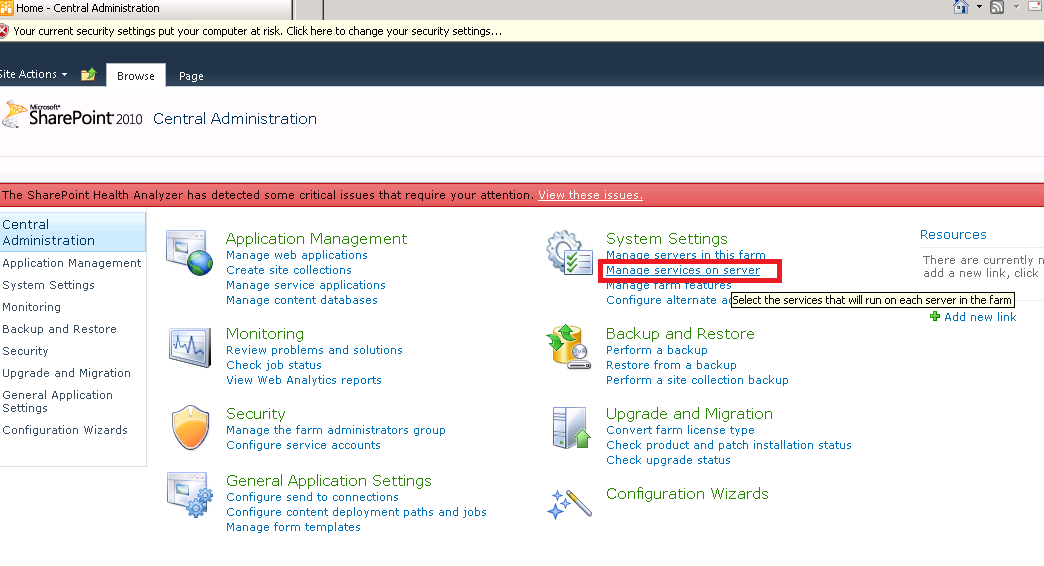
Can't see Manage Services in SharePoint 2010

Sometimes we can't see the "Manage Services in Server"

are you puzzled???
*** Start the browser with "administrator privileges" :)

Find SharePoint 2010 Version and status of updates


Saturday, October 22, 2011

Get SharePoint Webapplication port number in 2010

1. Open a text document
2. Type the following lines

"echo Getting all SharePoint ports
pushd C:\Windows\System32\inetsrv
appcmd list wp
cd C:\Windows\System32\inetsrv
pause"


3. save as "myApps.cmd"
4. Run as Administrator

Friday, October 21, 2011

SharePoint 2010 close the popup and redirect parent

In SharePoint 2010 we have popup windows in many places.

If we need to close the PopUp and redirect the parent to a new page or reload the PopUp we can use simple code :)

Server side Code In the POPUP page
string redirectUrl = ResourceWrapper.GetAAFResource("PopupMyApprovalsLink");
Response.Write("script type='text/javascript'>window.frameElement.navigateParent('"+ redirectUrl +"'));
also we can use,
Response.Write("script type='text/javascript'>window.frameElement.commitPopup()");
to close the PopUp

Thursday, October 6, 2011

Excel Macro To Send Emails Automatically

Option Explicit

Private Sub Worksheet_Calculate()
    Dim FormulaRange As Range
    Dim NotSentMsg As String
    Dim MyMsg As String
    Dim SentMsg As String
    Dim MyLimit As Date

    NotSentMsg = "Not Sent"
    SentMsg = "Sent"

    'Above the MyLimit value it will run the macro
    MyLimit = Date   //Set The Current Date

    'Set the range with Formulas that you want to check
    Set FormulaRange = Me.Range("J6:J60") //Date Range

    On Error GoTo EndMacro:
    For Each FormulaCell In FormulaRange.Cells
        With FormulaCell
            If IsDate(.Value) = False Then
                MyMsg = "Not a date"
            Else
                If .Value < MyLimit Then
                    MyMsg = SentMsg
                    If .Offset(0, 1).Value = NotSentMsg Then
                        Call Mail_with_outlook2  //Call To Send Emails
                    End If
                Else
                    MyMsg = NotSentMsg
                End If
            End If
            Application.EnableEvents = False
            .Offset(0, 1).Value = MyMsg
            Application.EnableEvents = True
        End With
    Next FormulaCell

ExitMacro:
    Exit Sub

EndMacro:
    Application.EnableEvents = True

    MsgBox "Some Error occurred." _
         & vbLf & Err.Number _
         & vbLf & Err.Description

End Sub
=================================================
Email Sending Part
=================================================
Sub Mail_with_outlook2()

    Dim OutApp As Object
    Dim OutMail As Object
    Dim strto As String, strcc As String, strbcc As String
    Dim strsub As String, strbody As String

    Set OutApp = CreateObject("Outlook.Application")
    Set OutMail = OutApp.CreateItem(0)

    strto = Cells(FormulaCell.Row, "P").Value
    strcc = ""
    strbcc = ""
    strsub = "Do an update"
    strbody = "Hi " & Cells(FormulaCell.Row, "L").Value & vbNewLine & vbNewLine & _
              "Your expiry date is: " & Cells(FormulaCell.Row, "J").Value & vbNewLine & _
              "for the task of : " & Cells(FormulaCell.Row, "C").Value & _
              vbNewLine & vbNewLine & "Do an update" & _
              vbNewLine & vbNewLine & "Thanks." & _
              vbNewLine & vbNewLine & "Regards," & _
              vbNewLine & vbNewLine & "Marina Samaratunge"

    With OutMail
        .To = strto
        .CC = strcc
        .BCC = strbcc
        .Subject = strsub
        .Body = strbody
        'You can add a file to the mail like this
        '.Attachments.Add ("C:\test.txt")
        .Display    ' or use .Send
    End With

    Set OutMail = Nothing
    Set OutApp = Nothing
End Sub

My Masters