
1) Simply create a text file in your local machine
2) Add following content to the text file
<script type="text/javascript" language="javascript">
var reloadTimer = null;
var sURL = unescape(window.location.pathname);
function setReloadTime(secs)
{ if (arguments.length == 1)
{ if (reloadTimer) clearTimeout(reloadTimer);
reloadTimer = setTimeout("setReloadTime()", Math.ceil(parseFloat(secs)*1000));
}
else
{ reloadTimer = null;
location.reload(true);
window.location.replace( sURL );
}
}
setReloadTime(30);
</script>
3) Go to SharePoint and upload the text file to a Document folder (Read Permission to all users)
4) Get the file URL and copy it
5) Go to WebPart page, EDIT mode
6) Add a Content Editor WebPart
7) Set URL of File link to uploaded text file URL in Content Editor WebPart
8) Save and Hide Your Content Editor WebPart
Your page will refresh in every 30 seconds. :) :)
Friday, October 25, 2013

Tuesday, September 10, 2013
Disable Copy-Paste option of Page URL in C#
if (!Request.FilePath.Contains("Default"))
{
string strPreviousPage = "";
if (Request.UrlReferrer != null)
{
strPreviousPage = Request.UrlReferrer.Segments[Request.UrlReferrer.Segments.Length - 1];
}
if (strPreviousPage == "")
{
Response.Redirect("Default.aspx");
}
*** Add this Code inside MASTER PAGE
Sunday, August 25, 2013
Update SharePoint 2010 Farm Credentials Using PowerShell
#Input the Managed Account
#If there is only one managed account, the following line could be written as:
#$inputManagedAcct = Get-SPManagedAccount
$inputManagedAcct = Read-Host "Enter managed account as Domain\User"
#Input the desired new password
$inputPasswd = Read-Host "Enter new password for managed account" –AsSecureString
#Change the password for the managed account to the new value
Set-SPManagedAccount -Identity $inputManagedAcct -NewPassword $inputPasswd
------------------------------------------------------------------------------------------------------------------------------------------------------------ Update after AD Reset ----------------------------------------------------------------
#Input the Managed Account
#If there is only one managed account, the following line could be written as:
#$inputManagedAcct = Get-SPManagedAccount
$inputManagedAcct = Read-Host "Enter managed account as Domain\User:"
#Input the Managed Account
$inputPasswd = Read-Host "Enter password from Active Directory for managed account:" –AsSecureString
#Change the password in SharePoint for the managed account to the new value
Set-SPManagedAccount -Identity $inputManagedAcct -ExistingPassword $inputPasswd –UseExistingPassword $true
Tuesday, August 6, 2013
Get Last 20 Slowest SQL Queries
SELECT TOP 20
SUBSTRING(qt.text,
(qs.statement_start_offset/2)+1,
((CASE
qs.statement_end_offset WHEN -1 THEN DATALENGTH(qt.text)
ELSE
qs.statement_end_offset
END -
qs.statement_start_offset)/2)+1),
qs.execution_count,
qs.total_logical_reads, qs.last_logical_reads,
qs.min_logical_reads, qs.max_logical_reads,
qs.total_elapsed_time, qs.last_elapsed_time,
qs.min_elapsed_time, qs.max_elapsed_time,
qs.last_execution_time,
qp.query_plan
FROM
sys.dm_exec_query_stats qs
CROSS APPLY
sys.dm_exec_sql_text(qs.sql_handle) qt
CROSS APPLY
sys.dm_exec_query_plan(qs.plan_handle) qp
WHERE
qt.encrypted = 0
ORDER BY
qs.total_logical_reads DESC
Thursday, July 11, 2013
Getting exclusive access to a SQL Server database for restore - Solution
*** When we restore DB we are always getting exclusive access error.
So I have written a Query to
set DB OFFLINE
RESTORE DB
Changing location of .MDF and .LDF files
ALTER DATABASE WSS_CONTENT_1545 SET OFFLINE WITH ROLLBACK IMMEDIATE
--ALTER DATABASE WSS_CONTENT_1545 SET ONLINE
USE[MASTER]
ALTER DATABASE WSS_CONTENT_1545
SET SINGLE_USER WITH ROLLBACK immediate
Restore database WSS_CONTENT_1545
from Disk = 'E:\Wss_Content_Bak.bak' with REPLACE,
move 'WSS_Content_1111' to 'E:\Intra\WSS_Content_1545.mdf',
move 'WSS_Content_1111_Log' to 'E:\Intra\WSS_Content_1545.ldf'
*** (WSS_Content_1111 is the OLD DATABASE NAME)
So I have written a Query to
set DB OFFLINE
RESTORE DB
Changing location of .MDF and .LDF files
ALTER DATABASE WSS_CONTENT_1545 SET OFFLINE WITH ROLLBACK IMMEDIATE
--ALTER DATABASE WSS_CONTENT_1545 SET ONLINE
USE[MASTER]
ALTER DATABASE WSS_CONTENT_1545
SET SINGLE_USER WITH ROLLBACK immediate
Restore database WSS_CONTENT_1545
from Disk = 'E:\Wss_Content_Bak.bak' with REPLACE,
move 'WSS_Content_1111' to 'E:\Intra\WSS_Content_1545.mdf',
move 'WSS_Content_1111_Log' to 'E:\Intra\WSS_Content_1545.ldf'
*** (WSS_Content_1111 is the OLD DATABASE NAME)
Friday, April 5, 2013
Find Storage Usage of a Site Collection in SharePoint 2010
1) Go to Central Administration --> Application Management --> Configure Quota and Locks

2) View Storage Data (example: 13 MB)


2) View Storage Data (example: 13 MB)

Monday, March 18, 2013
WMI Query to get Date Difference between Server and Local Machine
Dim computer1
Dim Domaincontroller
Dim value1
Dim value2
Dim difference
strComputer = "alice"
Set objWMIService = GetObject("winmgmts:\\" & strComputer & "\root\cimv2")
Set colItems = objWMIService.ExecQuery("Select * From Win32_LocalTime")
For Each objItem in colItems
intMonth = objItem.Month
intDay = objItem.Day
intYear = objItem.Year
dtmDate = intMonth & "/" & intDay & "/" & intYear
intHour = objItem.Hour
If intHour < 12 Then
strAMPM = "AM"
Else
intHour = intHour - 12
strAMPM = "PM"
End If
intMinutes = objItem.Minute
If intMinutes < 10 Then
intMinutes = "0" & intMinutes
End If
intSeconds = objItem.Second
If intSeconds < 10 Then
intSeconds = "0" & intSeconds
End If
dtmTime = intHour & ":" & intMinutes & ":" & intSeconds & " " & strAMPM
firstDate = dtmDate & " " & dtmTime
'Wscript.Echo firstDate
Next
strComputer1 = "dc1"
Set objWMIService = GetObject("winmgmts:\\" & strComputer1 & "\root\cimv2")
Set colItems1 = objWMIService.ExecQuery("Select * From Win32_LocalTime")
For Each objItem in colItems1
intMonth = objItem.Month
intDay = objItem.Day
intYear = objItem.Year
dtmDate = intMonth & "/" & intDay & "/" & intYear
intHour = objItem.Hour
If intHour < 12 Then
strAMPM = "AM"
Else
intHour = intHour - 12
strAMPM = "PM"
End If
intMinutes = objItem.Minute
If intMinutes < 10 Then
intMinutes = "0" & intMinutes
End If
intSeconds = objItem.Second
If intSeconds < 10 Then
intSeconds = "0" & intSeconds
End If
dtmTime = intHour & ":" & intMinutes & ":" & intSeconds & " " & strAMPM
nextDate = dtmDate & " " & dtmTime
' Wscript.Echo nextDate
next
myDif = DateDiff("s",firstDate,nextDate)
'Wscript.Echo myDif
ourMessage = "hi"
If myDif > 900 Then
ourMessage = "0"
Else
ourMessage = "1"
End If
If myDif < -900 Then
ourMessage = "0"
Else
ourMessage = "1"
End If
Wscript.Echo ourMessage
'///////////////////////////////////////////
' Convert WMI Time Function
'///////////////////////////////////////////
On Error Resume Next
Function ConvWMITime(wmiTime)
yr = left(wmiTime,4)
mo = mid(wmiTime,5,2)
dy = mid(wmiTime,7,2)
tm = mid(wmiTime,9,6)
ConvWMITime = mo&"/"&dy&"/"&yr & " " & FormatDateTime(left(tm,2) & _
":" & Mid(tm,3,2) & ":" & Right(tm,2),3)
End Function
Dim Domaincontroller
Dim value1
Dim value2
Dim difference
strComputer = "alice"
Set objWMIService = GetObject("winmgmts:\\" & strComputer & "\root\cimv2")
Set colItems = objWMIService.ExecQuery("Select * From Win32_LocalTime")
For Each objItem in colItems
intMonth = objItem.Month
intDay = objItem.Day
intYear = objItem.Year
dtmDate = intMonth & "/" & intDay & "/" & intYear
intHour = objItem.Hour
If intHour < 12 Then
strAMPM = "AM"
Else
intHour = intHour - 12
strAMPM = "PM"
End If
intMinutes = objItem.Minute
If intMinutes < 10 Then
intMinutes = "0" & intMinutes
End If
intSeconds = objItem.Second
If intSeconds < 10 Then
intSeconds = "0" & intSeconds
End If
dtmTime = intHour & ":" & intMinutes & ":" & intSeconds & " " & strAMPM
firstDate = dtmDate & " " & dtmTime
'Wscript.Echo firstDate
Next
strComputer1 = "dc1"
Set objWMIService = GetObject("winmgmts:\\" & strComputer1 & "\root\cimv2")
Set colItems1 = objWMIService.ExecQuery("Select * From Win32_LocalTime")
For Each objItem in colItems1
intMonth = objItem.Month
intDay = objItem.Day
intYear = objItem.Year
dtmDate = intMonth & "/" & intDay & "/" & intYear
intHour = objItem.Hour
If intHour < 12 Then
strAMPM = "AM"
Else
intHour = intHour - 12
strAMPM = "PM"
End If
intMinutes = objItem.Minute
If intMinutes < 10 Then
intMinutes = "0" & intMinutes
End If
intSeconds = objItem.Second
If intSeconds < 10 Then
intSeconds = "0" & intSeconds
End If
dtmTime = intHour & ":" & intMinutes & ":" & intSeconds & " " & strAMPM
nextDate = dtmDate & " " & dtmTime
' Wscript.Echo nextDate
next
myDif = DateDiff("s",firstDate,nextDate)
'Wscript.Echo myDif
ourMessage = "hi"
If myDif > 900 Then
ourMessage = "0"
Else
ourMessage = "1"
End If
If myDif < -900 Then
ourMessage = "0"
Else
ourMessage = "1"
End If
Wscript.Echo ourMessage
'///////////////////////////////////////////
' Convert WMI Time Function
'///////////////////////////////////////////
On Error Resume Next
Function ConvWMITime(wmiTime)
yr = left(wmiTime,4)
mo = mid(wmiTime,5,2)
dy = mid(wmiTime,7,2)
tm = mid(wmiTime,9,6)
ConvWMITime = mo&"/"&dy&"/"&yr & " " & FormatDateTime(left(tm,2) & _
":" & Mid(tm,3,2) & ":" & Right(tm,2),3)
End Function
Tuesday, March 5, 2013
SSRS Can not Open Connection to report server
The report server cannot open a connection to the report server database. A connection to the database is required for all requests and processing. (rsReportServerDatabaseUnavailable)
 The Solution is the re-configure SSRS using command
1) Open Command Prompt with privileges
2) Run
rsconfig -c -s SPSVR -d reportserverName -a Windows -u AD\administrator -p myp@ssw0rd

1) Open Command Prompt with privileges
2) Run
rsconfig -c -s SPSVR -d reportserverName -a Windows -u AD\administrator -p myp@ssw0rd
Wednesday, February 13, 2013
Add a Visual WebPart to a SandBox Solution in SharePoint 2010
When we create a Sandbox solution we can't add Visual Web-parts to it.
But it is mandatory when we create complex scenarios.
So we have a solution powered by Microsoft. --> "Visual Studio 2010 SharePoint Power Tools"
1) First download the small patch


 7) Then we have, full Web controls enabled WebPart (SANDBOX)

But it is mandatory when we create complex scenarios.
So we have a solution powered by Microsoft. --> "Visual Studio 2010 SharePoint Power Tools"
1) First download the small patch

2) Install the package (SPPowerTools_x86)

3) It Installs plugin to VS 2010

4) After created a SharePoint project, we can add "Visual WebParts (Sandboxed)" to our project

5) Can program our CODE, add complex logic

6) Can add all web controls to our .ASCX file


Sunday, February 10, 2013
Developer DashBoard In SharePoint 2010
1) Open Normal SharePoint Page, we can t see any dashboard item or ICON

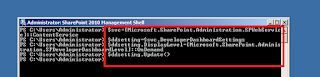 4) Open SharePoint page and view ICON in the top Right corner
 5) View Data in the bottom panel of SharePoint page

6) Can switch-off at any time with powershell command

2) Open command prompt and Change path to SharePoint 14 hive and type the command (STSADM)

3) OR, Open PowerShell with administrative privileges and run the PowerShell command


*** It displays the time taken to load full page, any WebPart, render time for RIBBON and the execution time.
6) Can switch-off at any time with powershell command
Subscribe to:
Posts (Atom)