About Me

My photo
a Dynamic and Energetic guy.....
Showing posts with label SharePoint online. Show all posts

Tuesday, January 31, 2017

Retrieving SPList Data From SharePoint Online Site using CSOM

using Microsoft.SharePoint.Client;
using System;
using System.Collections.Generic;
using System.ComponentModel;
using System.Data;
using System.Drawing;
using System.Linq;
using System.Security;
using System.Text;
using System.Threading.Tasks;
using System.Windows.Forms;

namespace SPOnlineDataAccess
{
    public partial class Form1 : System.Windows.Forms.Form
    {
        public Form1()
        {
            InitializeComponent();
        }

        private void LoadDefaultValues()
        {
            txtSiteUrl.Text = "https://abc.sharepoint.com/sites/testsite";
            txtListName.Text = "OnlineList";
            txtUserEmail.Text = "user1@xyz.com";
            txtPassword.Text = "pass@123qaz";
        }

        private void btnLoad_Click(object sender, EventArgs e)
        {
            DataTable dtResults = ReadSPList();
            dataGridView1.DataSource = dtResults;
        }


        private DataTable ReadSPList()
        {
            using (ClientContext clientContext = GetContextObject())
            {
                try
                {
                    DataTable dtListData = new DataTable();
                    //Creating DataTable Columns
                    dtListData.Columns.Add("Title", typeof(String));
                    dtListData.Columns.Add("Designation", typeof(String));
                    dtListData.Columns.Add("EmpID", typeof(String));

                    //Getting Data From SharePoint
                    Web web = clientContext.Web;
                    clientContext.Load(web, website => website.ServerRelativeUrl);
                    clientContext.ExecuteQuery();                  

                    //Read SPList called "OnlineList"
                    List myList = web.Lists.GetByTitle(txtListName.Text);

                    // This creates a CamlQuery that has a RowLimit of 1000, and also specifies Scope="RecursiveAll"
                    // so that it grabs all list items, regardless of the folder they are in.
                    CamlQuery query = CamlQuery.CreateAllItemsQuery(1000);
                    ListItemCollection items = myList.GetItems(query);

                    // Retrieve all items in the ListItemCollection from List.GetItems(Query).
                    clientContext.Load(items);
                    clientContext.ExecuteQuery();

                    for (int count = 0; count < items.Count; count++)
                    {
                        DataRow dr = dtListData.NewRow();
                        dr["Title"] = items[count]["Title"].ToString();
                        dr["Designation"] = items[count]["Designation"].ToString();
                        dr["EmpID"] = items[count]["EmpID"].ToString();

                        dtListData.Rows.Add(dr);
                    }
                    return dtListData;
                }
                catch (Exception ex)
                {
                    MessageBox.Show(ex.Message);
                    return null;
                }
            }
        }

        private ClientContext GetContextObject()
        {
            string siteUrl = txtSiteUrl.Text;
            string userName = txtUserEmail.Text;
            string password = txtPassword.Text;
            SecureString _password = GetPasswordFromInput(password);

            ClientContext context = new ClientContext(siteUrl);
            context.Credentials = new SharePointOnlineCredentials(userName, _password);
            return context;
        }

        private void Form1_Load(object sender, EventArgs e)
        {
            LoadDefaultValues();
        }

        private SecureString GetPasswordFromInput(string password)
        {
            //Get the user's password as a SecureString
            SecureString securePassword = new SecureString();
            char[] arrPassword = password.ToCharArray();
            foreach (char c in arrPassword)
            {
                securePassword.AppendChar(c);
            }

            return securePassword;
        }

    }
}


Monday, March 9, 2015

Enable RMS in SharePoint 2013 Online using Azure RMS

We have to enable RMS for a document in SharePoint Online. First when we go to the Library settings there is no section called "Information Rights Management".


We have to enable it using Admin Center.

Click Rights Management in the left panel
activate RMS.
Once activated, go to the Library Settings

we can see new section called, "Information Rights Management"
We can set new "Policy Name" and "Description"


Once saved the RMS, when use opens the document it is assigned to RMS.

we can set the document library to "not to open in browser"
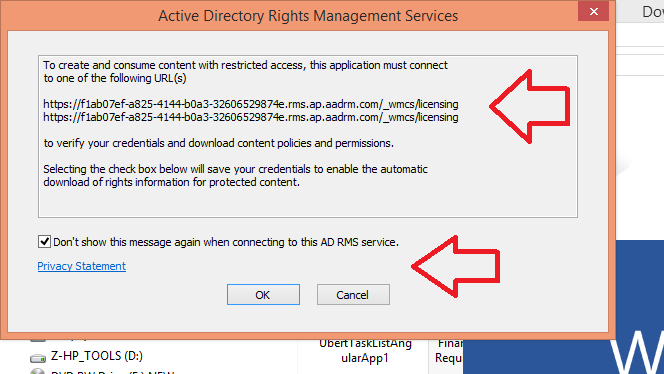
when user opens the document, it will be displayed the message.
It will inform the user regarding the RMS settings.


though User download the document, it will be prompt the credentials.


Monday, August 6, 2012

Enable RSS for SharePoint 365 Online

SharePoint 365 Site --> Site Settings --> RSS
 

 Configure RSS for whole site

Still we can't have RSS  under "Library settings"

Document Library settings --> RSS settings

Configure RSS feed settings for "Library"


Now we can see RSS under Document Library 

Open Outlook --> RSS Feed


Enter Document Library URL, Outlook will auto integrate with RSS xml


 It is done, We can see related Docs

Wednesday, July 18, 2012

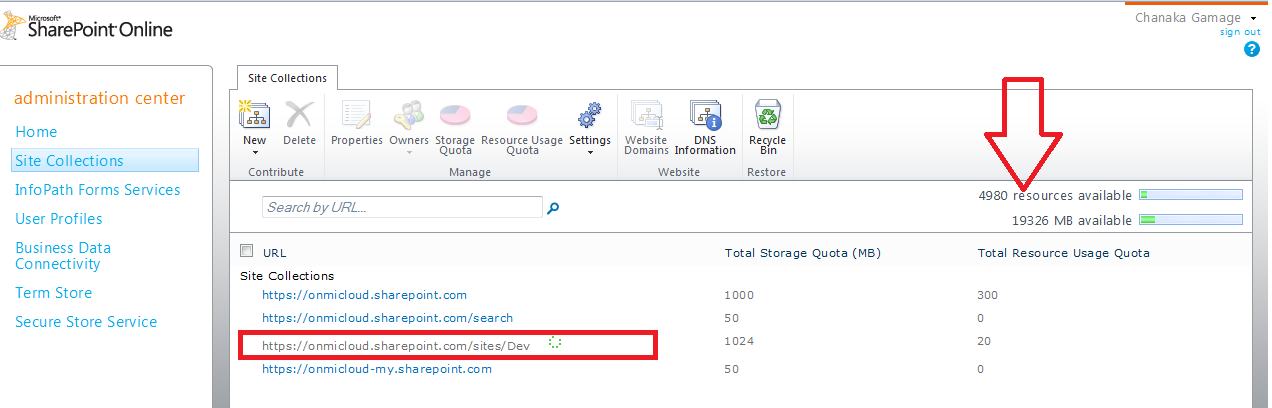
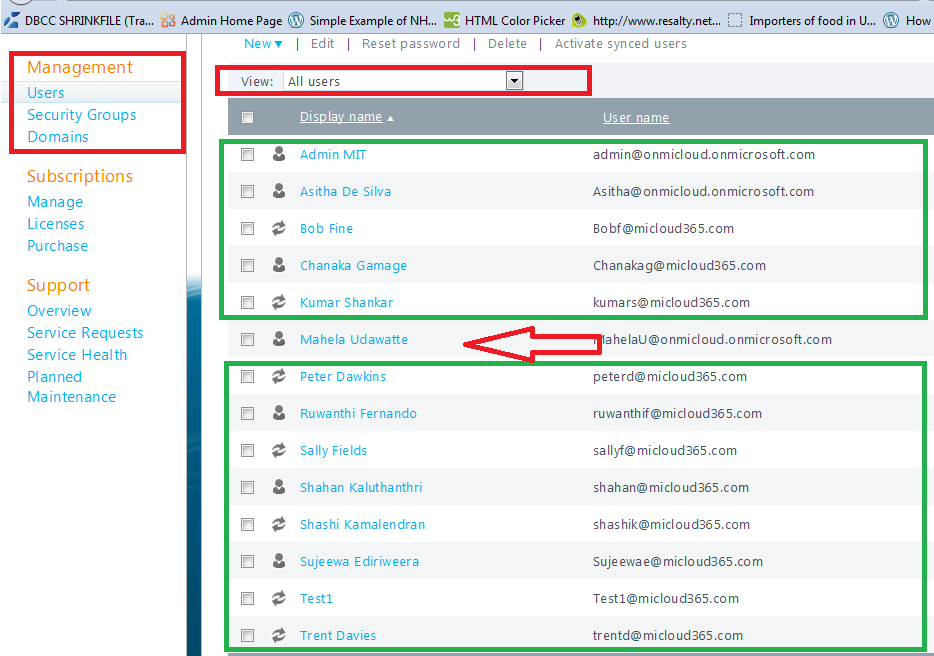
SharePoint On Cloud in Office 365


Nice, now We have created SharePoint online portal.


My Masters