About Me

My photo
a Dynamic and Energetic guy.....

Monday, June 15, 2015

Hide DELVE / VIDEO icons in Office 365 SharePoint portal

There are a lot of icons in the RIBBON in SharePoint portals.
If we do not want to use those, we can disable using Settings.
We have to Go to 
Admin Center --> SharePoint Section

After we get SharePoint manage page,
Then we have to go to SETTINGS section.

To hide DELVE we have to DISABLE "Office Graph" option.
To Hide VIDEO we have to DISABLE "Streaming Video Service" option.

After SAVE and refresh the page. We wont be able to see DELVE icon and VIDEO icon.


Thursday, May 21, 2015

Can't Edit Office 365 SharePoint Site Using SharePoint Designer

When we want to EDIT Office 365 SharePoint Site Using SharePoint Designer, we are getting unexpected error.
When we click OK it will "The Server couldn't complete the request". 


This error happens when we OPEN root site, we can OPEN sub sites using SharePoint Designer.

This is a problem with SharePoint Designer. We have to install Service Pack 1 for SharePoint Designer. (KB 2817441)
After Restart the server, we can OPEN the Office 365 SharePoint Site Using Designer.

Sunday, March 22, 2015

Edit Office 365 site using SharePoint Designer

By default We cant edit office 365 site using SharePoint Designer.
We have to go to SharePoint admin center and enable it.

Go to admin Center
Check Whether SharePoint Designer is enabled, but still we cant see the SharePoint designer under site settings

Go to Admin Centre

Go to SETTINGs from the left panel


Enable CUSTOM SCRIPTS

Then check with SIte Settings. Still we can't see it. We have to wait few hours until SharePoint completes it. :)

Monday, March 9, 2015

Enable RMS in SharePoint 2013 Online using Azure RMS

We have to enable RMS for a document in SharePoint Online. First when we go to the Library settings there is no section called "Information Rights Management".


We have to enable it using Admin Center.

Click Rights Management in the left panel
activate RMS.
Once activated, go to the Library Settings

we can see new section called, "Information Rights Management"
We can set new "Policy Name" and "Description"


Once saved the RMS, when use opens the document it is assigned to RMS.

we can set the document library to "not to open in browser"
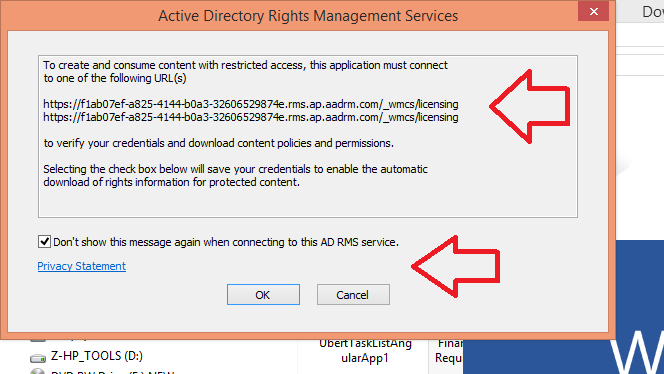
when user opens the document, it will be displayed the message.
It will inform the user regarding the RMS settings.


though User download the document, it will be prompt the credentials.


Monday, March 2, 2015

SharePoint admin service is not starting

1.    Open Group Policy Editor. From startà search box, type in gpedit.msc
2.    Computer ConfigurationàWindows SettingsàPublic Key Policies àCertificate Path Validation Settings
3.    Click on the “Network Retrieval” tab
4.    Check the “Define these policy settings” and uncheck the “Automatically update certificates in the Microsoft Root Certificate Program”
5.    Click OK


Wednesday, January 28, 2015

Deploy SharePoint Solution Without Adding New List Instance

When we deploy SharePoint solution to the environment by default it delete old LIST and deploy new LIST. When doing so the users are loosing all the ITEMS with the LIST.


We have a List with 4 columns. When we need to add new column without loosing data, we have to change a property in the LISTINSTANCE.
after adding new column, we have to get PROPERTIES in the LISTINSTANCE.
Then we have to change the "Deployment Conflict Resolution" as "NONE"
After that we can deploy the solution.
It will add new COLUMN to the LIST without data deletion.
Also, we add new COLUMN as REQUIRED, but for OLD items it was not an issue.
But for a New ITEM it is mandatory.


Monday, December 8, 2014

How to Upgrade A SharePoint App


When we develop SharePoint App we can’t do fresh deployment every time. We have to upgrade our solution when changes append to the system. There are few thing that we have to do in the code for upgrades. But here we are doing the deployment steps.
First we have to go to the APP and get the version.

Our next deployment should be grater than the current version of the APP. We can get the version using APPMANIFEST.xml


Now we have to use PowerShell commands to upgrade the solution. First we have to IMPORT the package to server.

It will pop up to packages from the TRUSTED SOURCES.
 Once we PRESS Y, it will import to the site collection.

When we get the instance of the APP, we can execute Upgrade function.

When executing it, we can see Site collection also updating the APP.


So we will only update the APP, not a full deployment.


$spapp = Import-SPAppPackage -Path E:\Deployment\TRCA.app -Site http://spsvr:1111 -Source ([microsoft.sharepoint.administration.spappsource]::ObjectModel)

$instances = Get-SPAppInstance -Web http://spsvr:1111

Update-SPAppInstance -Identity $instances[2] -App $spapp

Monday, October 20, 2014

Change SharePoint Title

When we need to change the SharePoint Title from the Site collection,
We can use PowerShell Command.

PS C:\Users\Administrator> $app = Get-SPWebApplication -Identity http://spsvr:1111

PS C:\Users\Administrator> $app.SuiteBarBrandingElementHtml = "<div class='ms-core-brandingText'></div>"
PS C:\Users\Administrator> $app.Update()
PS C:\Users\Administrator>


Now can see the Chaned TEXT. If we don't want anything we can set "EMPTY".

Sunday, October 19, 2014

SharePoint Calendar Using HTML


When we need a CALEDAR runs on SharePoint. We can simply use a HTML calendar.
It will display whole month, highlight the CUREENT date.
Whet we have to do is,
1)      Add a SCRIPT EDITOR to SharePoint page
2)      Add following code snippet and save it.

<html>
<title>www.scriptSplash.com => javaScript - Basic Calendar</title>
<head>
<style type="text/css">
.calendarTable {
    background-color:#eee;
    color:#333;
    border: 1px solid #bbb;
}
.calendarTable td {
    text-align: center;
    padding: 2px 4px 2px 4px;
}
.calendarTable td.monthHead {
    font-weight: bold;
    border: 1px solid #bbb;
    background-color:#ddd;
}
.calendarTable td.weekDay {
    font-weight: bold;
}
.calendarTable td.monthDay {
    border: 1px solid #ddd;
}
.calendarTable td.currentDay {
    font-weight: bold;
    color:#ad5;
    border: 1px solid #aaa;
}
</style>
<script type="text/javascript" language="javascript">
/** Function to display a Calendar based on javascript. **/
function calendar() {
  // Get the current date parameters.
  var date = new Date();
  var day = date.getDate();
  var month = date.getMonth();
  var year = date.getFullYear();
 
  var months = new Array('January','February','March','April','May','June','July','August','September','October','November','December');
  var monthDays = new Array(31,28,31,30,31,30,31,31,30,31,30,31);
  var weekDay = new Array('Mo','Tu','We','Th','Fr','Sa','Su');
  var days_in_this_month = monthDays[month];

  // Create the basic Calendar structure.
  var calendar_html = '<table class="calendarTable">';
  calendar_html += '<tr><td class="monthHead" colspan="7">' + months[month] + ' ' + year + '</td></tr>';
  calendar_html += '<tr>';
  var first_week_day = new Date(year, month, 1).getDay();
  for(week_day= 0; week_day < 7; week_day++) {
    calendar_html += '<td class="weekDay">' + weekDay[week_day] + '</td>';
  }
  calendar_html += '</tr><tr>';

  // Fill the first week of the month with the appropriate number of blanks.
  for(week_day = 0; week_day < first_week_day; week_day++) {
    calendar_html += '<td> </td>';
  }
  week_day = first_week_day;
  for(day_counter = 1; day_counter <= days_in_this_month; day_counter++) {
    week_day %= 7;
    if(week_day == 0)
      calendar_html += '</tr><tr>';
    // Do something different for the current day.
    if(day == day_counter) {
      calendar_html += '<td class="currentDay">' + day_counter + '</td>';
    } else {
      calendar_html += '<td class="monthDay"> ' + day_counter + ' </td>';
 }
    week_day++;
  }
  calendar_html += '</tr>';
  calendar_html += '</table>';
  // Display the calendar.
  document.write(calendar_html);
}
</script>
</head>
<body>
  <h2> Basic Calendar </h2>
  <br/>
  <script type="text/javascript">calendar();</script>
</body>

</html>

Wednesday, June 18, 2014

View Health / Usage Reports in SharePoint 2013

We can get full detail of Usage within SharePoint Farm.
First we have to enable Logging in Central Administration


Set "Least critical event to report to the event log" as VERBOSE
Set "Least critical event to report to the trace log " as VERBOSE.
All the usage data will be tracked in the farm.

Then go to CA --> Monitoring --> View Health Reports

There we can see "SLOWEST PAGES" section. We can set the FARM and Web Application. When we click GO, it displays an error.


 The error explains the error regarding Database status.

We have to open Database "WSS_Logging". The we have to find the Stored Procedure mapped with the error.


We have to Modify the Stored Procedure. There we have to comment the "WITH (READPAST)" text. 


The Execute it.


Now we can run the report. We can see the full data with Slowest Page URLs and number of requests.


We have to wait some time to get real time data, mainly till the SharePoint timer job runs and collect the data.

My Masters