About Me

My photo
a Dynamic and Energetic guy.....

Sunday, June 12, 2016

OVERVIEW OF SHAREPOINT SEARCH

                                         SharePoint is implemented and developed for the content management. With the loads of content including documents, images and videos the SharePoint bare a lot of data. Then it is essential to find the data in speed manner with usability. For that SharePoint introduces SEARCH itself. On the other hand Microsoft invested a lot of money to build their own search engine, so called FAST Search. Until SharePoint 2010, the search mechanism was purely based within SharePoint and had limitations. With the implementation of SharePoint 2013, the FAST search also integrated and bundled FREE with SharePoint.
SharePoint Search is introduced with a lot of usable features for content users. The Search is categorized as,
1)      Everything
2)      People
3)      Conversions
4)      Videos


With the introduction of PEOPLE section, the end users can search employees using their Active directory features. To enable PEOPLE search, the SharePoint portal should be provisioned with User Profile Synchronization. After the enablement of Sync service, the Active Directory information will be fetched to the SharePoint and will be crawled, searchable with user inputs. 
With SharePoint 2013 the Search results page has been modified and enhanced with, 
1) Doc Preview
2) Result Categorization
3) Author wise categorization
4) Modified date categorization

Set Up A Search Center

First Search Service Application Should be provisioned via Central Administration. There we have to specify search service account,
And app pool for Search Service application and another app pool for Search Processing.

After that we have to create a Search Center Site Collection to link with SharePoint portal,


Finally, we have to link newly created Search Center Site with the content portal to facilitate end users to connect and find data,


Search Center Administration

After we have configured SharePoint Search Centre via Central Administration, Administrators can verify the “Search Administration” and the status.


 The “Search Application Topology” is consists of, 
1) Admin (Service Application)
2) Crawler
3) Content Processing
4) Analytics Processing
5) Query Processing
6) Index Partition, modules. 
All elements should be in GREEN status to crawl the items in the SharePoint repository and processing with search center. With the configuration SharePoint creates 4 databases for Administration, analytics reporting, Crawling and linking information. We can allocate a dedicated server for SharePoint Search within the FARM to reduce the load to other application servers.
First we have to set data sources that needs to bind with SharePoint Search. With new features we can assign different data sources to crawl with SharePoint and display results within portal. (SharePoint Sites, My-Sites, Internet Sites)

Also we can set crawling intervals for INCREMENTAL and FULL crawling. This will use a lot of resources, hence the interval should be decided after analysis of exact data availability. If frequently updating site, then crawling can be 2 hours.

Administrators can start any CRAWL at any time via “Search Administration” page. The crawling will take few minutes to few hours depends on the content and number of sites set in the CONTENT SOURCES section. After a crawl, we can view the crawl log and statistical information. It give last 24 hours, last 7 days and last month statistics with number of ITEMS dealt with the crawl. Number of scanned items, deleted items between last 2 crawls can be viewed using stats report. Administrators can view item-wise status and time intervals.

Search Rules

After configured Search Center, admins can create RULES to exclude items. It can be se via Crawl Rules.
Normal Search Result
When we search “SharePoint” word within portal, we will see results including my uploaded document “What is SharePoint”.


When we apply Crawl Rule, to EXLUDE items from a document library as follows,
Do the crawling, we can see search results with EXCLUDED items.


We can EXCLUDE search items using, 
1) URLs
2) Key Terms
3) Specific words while using elevated privileges.

Crawl Reports

With the enhanced Search analytics, SharePoint can produce reports with different schema. The 
1) Crawl Rate
2) Crawl Latency
3) CPU and Memory Load
4) Crawl Queue can be viewed with date filters.


It is little about SharePoint Search and its features.


Tuesday, April 19, 2016

SharePoint 2016 Installation Issue and the FIX

When we install SharePoint 2016 Pre-Requisites, we are getting a security issue. 
It is related to .NET framework, security issue.
We have to install Security KB from Microsoft.

We have to install Server 2012 related 64 bit version.
After we complete the Windows Update Standalone Installer, 
We can complete the SharePoint 2016 Pre-requisites installation.


Tuesday, April 5, 2016

Feature Difference Between SharePoint On-Premise and Office 365

SharePoint 2013 was launched in 2012 J but SharePoint online launched (Updated) Yesterday. That means the online version upgrades so frequently. Because of that we can see a lot of differences in 2 versions.
Here is the simple list that focused on Technical features, financial features are not compared.


On-Premise
Cloud
Authentication
CLAIM based authentication (Using Active Directory) + LDAP + SQL
Can use Office365 users directly or can use ADFS to migrate and authenticate users
Site Storage
Unlimited
Site collection should be < 100 GB, Can Increase
File Size
Can increase
10 GB
External Invites
Cannot use
Possible
Development
Full trust code can be included
Sand-boxed Solutions only
Search
Full Text Search
Limited and cannot be customized
Managed Accounts
Possible
Cannot use
Health analyzer
Possible
Cannot use
Delve
-
Introduced
Yammer Integration
Possible
Introduced
Public Web Site
Possible
Disabled
Connectivity
Only matters with LAN connectivity
Network connection is matters
Save as Template (data migration)
Possible
Disabled
Migrate Site data to another Site
Possible
Cannot use
Cross Site Publishing
Possible
Cannot use
Data threshold customization
Possible
Disabled
Reporting
Can get data using LOGS
Can’t get usage data other than provided Reports
Backup
Possible
Not possible


Monday, February 22, 2016

Loosing Features with SharePoint 2016

With the next version of SharePoint, 2016, we are loosing few features while introducing / enhancing many features.

1) SharePoint Foundation (free version) wont be available with SharePoint 2016
2) Standalone installation mode is not available, “MINROLE FARM TOPOLOGY” is available when doing farm installation
3) FIM is not supported to sync AD information, it supports “Active Directory Import” and “Microsoft Identity Manager”
4) Excel Services is not available, we can have it via “EXCEL ONLINE”
5) Trusted data providers, trusted file locations, trusted data connections not available
6) TAG and NOTES feature is also not available
7) STSADM.exe tool is not supported, have to use POWERSHELL

Wednesday, December 16, 2015

Content Editor WebPart With CSOM

Im writing simple code to save data to LIST using CSOM, include in CEWP.
The Code of full file that can be bounded to CEWP.

=======================================================================

<div onkeydown='javascript:if (event.keyCode == 13) postSurvey()'>
    <p>1. How is the weather?<br />
         <input name='q1' id='q1Bad' type='radio' value='Bad'/><label for='q1Bad'> Bad</label><br />
         <input name='q1' id='q1Good' type='radio' value='Good'/><label for='q1Good'> Good</label><br />
         <input name='q1' id='q1Great' type='radio' value='Great'/><label for='q1Great'> Great</label>
    </p>
    <p>2. How are you doing?<br />
         <input name='q2' id='q2Fine' type='radio' value='Fine'/> <label for='q2Fine'>Fine</label><br />
         <input name='q2' id='q2Good' type='radio' value='Good' /><label for='q2Good'> Good</label><br />
         <input name='q2' id='q2Great' type='radio' value='Great' /><label for='q2Great'> Great</label>
    </p>
    <input type='button' value='Submit' onclick='javascript:postSurvey();' />

</div>

/*
These 2 files are really important, The Order is also important
*/

<script type="text/javascript" src="/_layouts/15/sp.runtime.js"></script>
<script type="text/javascript" src="/_layouts/15/sp.js" ></script>

<script language='javascript' type='text/javascript'>
        function getCheckedValue(buttonGroup) {
            if (!buttonGroup)
                return '';
            var objLength = buttonGroup.length;
            if (objLength == undefined) {
                if (buttonGroup.checked)
                    return buttonGroup.value;
                else
                     return '';
            }
            for (var i = 0; i < objLength; i++) {
                if (buttonGroup[i].checked)
                    return buttonGroup[i].value;
            }
            return '';
        }
     
        function postSurvey() {
       
            // Retrieve the radio button values

            var question1 = getCheckedValue(document.getElementsByName('q1'));
            var question2 = getCheckedValue(document.getElementsByName('q2'));

            /* Validate the response.
               Do nothing more until all questions are answered.
            */
            if (question1 == '' || question2 == '') {
                alert('Please answer all questions.')
                return;
            }

// Get the current context
           var context = new SP.ClientContext.get_current();

           // Get the current site (SPWeb)
           var web = context.get_web();

           // Get the survey list
           var list = web.get_lists().getByTitle('SampleSurvey');

           // Create a new list item
           var itemCreateInfo = new SP.ListItemCreationInformation();
           var listItem = list.addItem(itemCreateInfo);

           /* Set fields in the item.
              In managed code, this would be listItem[fieldname] = value.
              In Javascript, call listItem.set_item(fieldName,value).
           */
           listItem.set_item('How_x0020_is_x0020_the_x0020_wea', question1);
           listItem.set_item('How_x0020_are_x0020_you_x0020_do', question2);
           listItem.update();

           // Create callback handlers
           var success = Function.createDelegate(this, this.onSuccess);
           var failure = Function.createDelegate(this, this.onFailure);

           // Execute an async query
           context.executeQueryAsync(success,failure);

        }

// Async query succeeded.
function onSuccess(sender, args) {

    alert('Thank you for responding to our survey!');
     
    // Refresh the page.
    SP.UI.ModalDialog.RefreshPage(SP.UI.DialogResult.OK);
}

// Async query failed.
function onFailure(sender, args) {
    alert(args.get_message());
}
    </script>

Sunday, November 22, 2015

Set Priority for a SQL Instance in a Failover Cluster Manager

After we set up a SQL Cluster with all the NODES and INSTANCES(Roles), In a Fail-over scenario the Instance will be move to "Best Possible NODE". In an environment that we have 3++ NODES, can we set the ORDER to fail-over for an INSTANCE?

When we select the relevant INSTANCE, we can see the "Preferred Owners = Any Node" in the panel. That means in a fail-over it will be moved to best possible node (after considering available resources). If we want to change it, CLICK "Any Node" link button.
We will get a pop-up and there we can see all the available NODEs. They are in the default Order (ie:- Node1, Node2, Node3)
First we have to change the ORDER using UP button, until we are getting most necessary NODE to the TOP. 

After we set the ORDER we have TICK the necessary NODES to make them available for Fail-over. If not these changes wont be get effected. We have set the HIGHEST PRIORITY for NODE-3. 

*** Since all other INSTANCES also running in NODE-3, if we select 'Best Possible Node', by default the INSTANCE-1 Should move to NODE-1.(Because Node-1 is not having any running Instance)

But after we set the Priority, the "Best Possible Node" will be the highest priority node.
That means though Node-1 is idle, the INSTANCE-1 has moved to NODE-3 from NODE-2. Also we can see the "Preferred Owners=User Settings" in bottom of the panel.
This is a  cool feature that comes with Fail-Over Cluster Manager.


Add and Remove Nodes from a SQL Cluster and Move Instances

After we set up the Windows cluster we need to add / remove nodes with different requirements. First we have to open "Windows Cluster Manager"
We can see all 3 Nodes in the Panel. If we want to remove NODE3 from the server, we need to run a small power-shell script.

We have to specify, "remove-clusternode [servernodename]"
After  the execution we can see the 3rd Node is not available in the Cluster Manager.
When we want to add a NODE, it is also simple. After we open the "Windows Cluster Manager", we can see "Add Node" option in right panel.
There we have specify the Server - Node name and ADD option. After the execution we can see new NODE has been added to Cluster Manager.
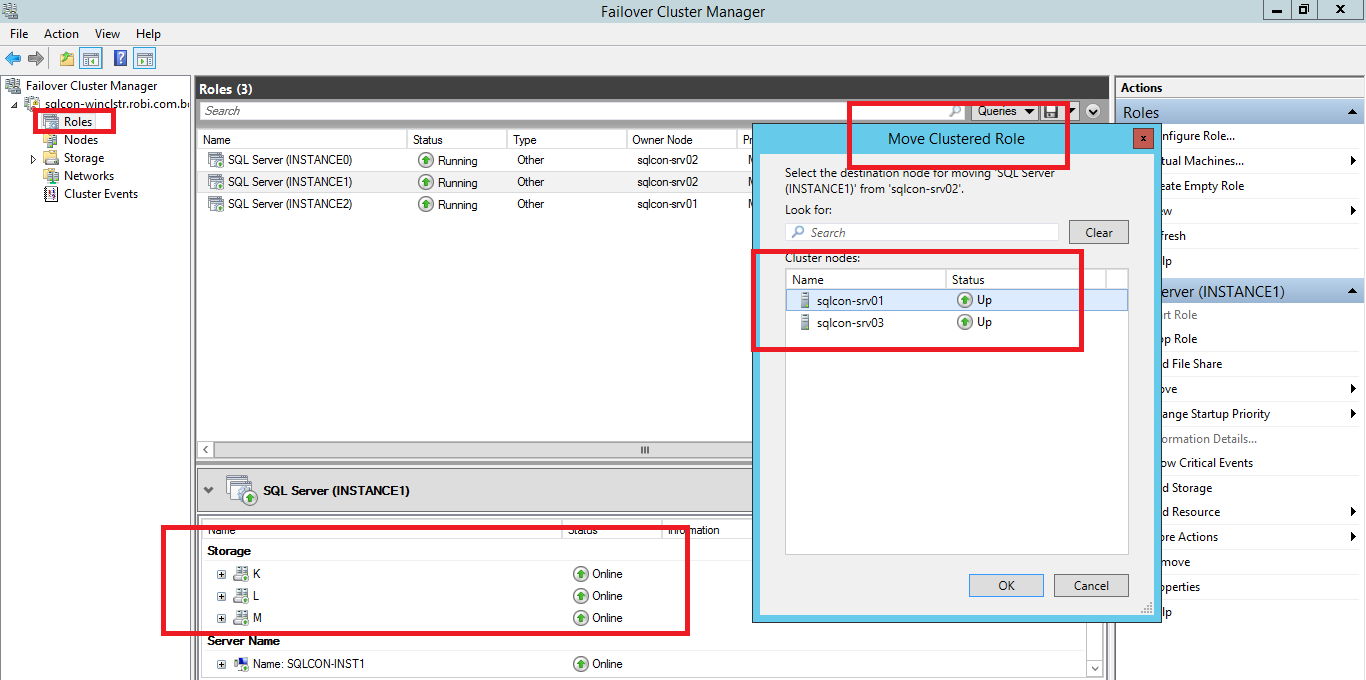
If we want to Move an Instance (Role) , we can choose either "Best Possible Node" or "Select Node" option. For that we have to RIGHT Click on the necessary ROLE. In the pop-up we can see available running possible NODES.

We can select necessary Node to swift the INSTANCE.
If we disable (make offline) any NODE using cluster Manager,
When we try to Move a NODE, we will wont get that option in the POP-UP window.

Like wise we can Move Roles (Instances) between NODEs.


Friday, November 20, 2015

SQL Server Management Studio is Missing (SSMS.exe) in Clustered SQL Farm

After we install SQL Server 2012 including Management Studio Tools, and trying to connect to a SQL server we are getting a surprising ERROR. Here SSMS.EXE means SQL Server Management Studio.

"The application has failed to start because of side-by-side configuration is incorrect".
As expected the executable  of Management Studio is missing. So we have to go to physical folder where we install SQL Server.
As Expected we can see a few DLLs files resides in ManagementStudio folder. There should be a mismatch in DLLs to get this error. Because of that. If we install Management Studio EXE only, it wont work. So we have Open SQL Installer.
Then We have to Select REPAIR Option Under MAINTENANCE.
The other important thing is, we have Select "REPAIR SHARED FEATURES ONLY" if you have Clustered SQL Environment.
After the Installation is completed, we can see Management Studio is repaired. We can see few more DLLs in the ManagementStudio folder.
Now We can open "SQL Server Management Studio" properly.


Monday, September 21, 2015

How to track User Profile Sync Issues in SharePoint 2013

User Profile Synchronization is a default feature that we gets with SharePoint 2013. When we need to migrate User accounts, properties to SharePoint we are using User Profile Synchronization. But due to various reasons we are failing to do so. 
To Track those issues we are getting a cool utility with SharePoint 2013.
It is miisclient located in /15/Synchronization Service/UIShell


After Open this utility we can see all synchronization attempts and the results.
It is called "Synchronization Service Manager on SERVERNAME".

There we can identify all attempts, time, status and Errors.


Here it says, "Replication Access was Denied" when trying to sync.


Monday, June 15, 2015

Hide DELVE / VIDEO icons in Office 365 SharePoint portal

There are a lot of icons in the RIBBON in SharePoint portals.
If we do not want to use those, we can disable using Settings.
We have to Go to 
Admin Center --> SharePoint Section

After we get SharePoint manage page,
Then we have to go to SETTINGS section.

To hide DELVE we have to DISABLE "Office Graph" option.
To Hide VIDEO we have to DISABLE "Streaming Video Service" option.

After SAVE and refresh the page. We wont be able to see DELVE icon and VIDEO icon.


My Masters